Google Sheets + ChatGPT Automation: Complete Make.com Tutorial
I used to spend hours manually brainstorming SEO keywords, copying them into spreadsheets, and organizing content ideas. The process was painfully repetitive, a constant drain on time and creative energy. Sound familiar? In today’s fast-paced digital landscape, efficiency isn’t just a buzzword; it’s the bedrock of success. Businesses and individuals are constantly seeking ways to streamline operations, save precious time, and maximize productivity. What if you could transform those tedious, manual tasks into a seamless, intelligent workflow? What if you could generate high-quality content and gain valuable insights without lifting a finger?
Enter the powerful trio that’s revolutionizing how we work: Google Sheets, ChatGPT, and Make.com. This article isn’t just another theoretical piece; it’s your practical guide to integrating these cutting-edge tools to create an automation workflow that can truly revolutionize your daily tasks. From generating highly effective SEO keywords to crafting compelling marketing copy, prepare to unlock a new level of productivity and strategic advantage.
The Power of Automation: Why This Trio is Your Workflow Game-Changer
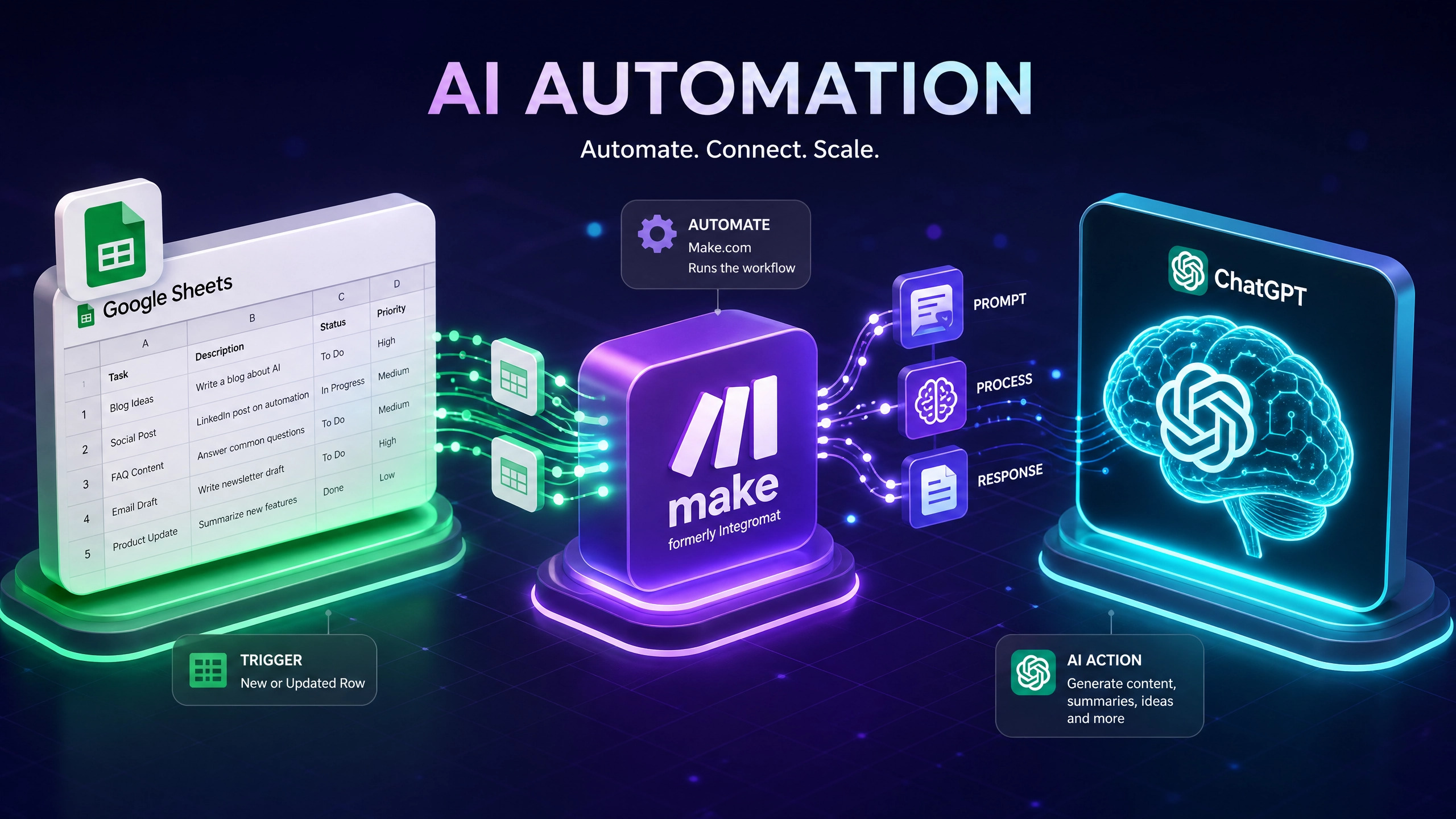
Imagine a world where your data in Google Sheets automatically triggers an AI to perform complex tasks, and then the results are seamlessly updated back into your spreadsheet. This isn’t a futuristic fantasy; it’s the tangible reality that Make.com (formerly Integromat) enables by connecting Google Sheets and ChatGPT. This integration unlocks a myriad of possibilities, transforming manual, time-consuming processes into efficient, automated workflows that work tirelessly for you.
Google Sheets: Your Dynamic Data Command Center
More than just a basic spreadsheet, Google Sheets is a versatile, cloud-based platform designed for organizing, analyzing, and collaborating on data in real-time. Its unparalleled accessibility and robust integration capabilities make it the ideal starting point for any automation project. Whether you’re meticulously managing content calendars, diligently tracking sales leads, or systematically organizing research data, Google Sheets provides the structured, dynamic environment needed to feed precise information to your AI assistant.
ChatGPT: Your Intelligent Content Co-Pilot
ChatGPT, powered by OpenAI’s advanced language models like GPT-4o-mini, is a true game-changer for content generation, insightful analysis, and creative problem-solving. From drafting persuasive emails and summarizing lengthy reports to brainstorming innovative ideas and generating SEO-optimized text, ChatGPT can handle a vast array of language-based tasks with remarkable accuracy and speed. When seamlessly integrated into an automated workflow, it transcends being just a tool; it becomes an invaluable virtual assistant, working intelligently and tirelessly in the background, freeing you to focus on higher-level strategy.
Make.com: The Orchestrator of Your Automated Symphony
Make.com is an intuitive visual platform that empowers you to design, build, and automate sophisticated workflows between virtually any online application. It acts as the crucial bridge, the orchestrator, connecting Google Sheets and ChatGPT. With Make.com, you can precisely define triggers (e.g., a new row added in Google Sheets) and subsequent actions (e.g., send data to ChatGPT, update a specific row with AI-generated content). Its intuitive drag-and-drop interface demystifies complex automations, making them accessible to everyone, regardless of their coding experience. It’s where your vision for efficiency comes to life.
Unlocking Unprecedented Efficiency: The Tangible Benefits
Integrating Google Sheets, ChatGPT, and Make.com isn’t just about convenience; it offers a profound transformation in how you operate, delivering a multitude of tangible benefits:
•Massive Time Savings: Automate repetitive, mundane tasks that once consumed hours of your day, freeing up valuable time for more strategic thinking, creative endeavors, and impactful work.
•Exponentially Increased Efficiency: Processes that previously took hours or even days can now be completed in mere minutes or even seconds, dramatically accelerating your operational speed.
•Elevated Content Quality & Consistency: Leverage the power of AI to consistently generate high-quality, SEO-optimized content, compelling creative copy, and insightful analyses, all while maintaining a consistent brand voice.
•Unmatched Scalability: Easily scale your operations without the need to hire additional staff or invest heavily in manual resources. Your automation works 24/7, adapting to your growing needs.
•Drastically Reduced Errors: Minimize the potential for human error by automating data transfer, content generation, and data updates, leading to more accurate and reliable outcomes.
•Smarter, Data-Driven Decisions: Utilize AI to rapidly process and analyze vast amounts of data directly from your spreadsheets, providing you with clearer insights and empowering you to make more informed, strategic decisions.
Transformative Use Cases: What Can You Automate Today?
The practical applications of this powerful integration are virtually limitless, spanning across various industries and functions. Here are just a few compelling use cases to spark your imagination:
•SEO Keyword Generation & Optimization: Automatically generate highly relevant and effective SEO keywords for new articles, blog posts, or product pages based on topics you simply list in your Google Sheet. This can include long-tail keywords, related queries, and semantic variations.
•Dynamic Content Creation & Intelligent Rewriting: Effortlessly draft engaging blog posts, compelling social media updates, persuasive product descriptions, or even rewrite existing content to adapt it for different platforms, audiences, or tones.
•Personalized Email Marketing Campaigns: Generate hyper-personalized email subject lines, captivating email bodies, or even entire email sequences based on specific customer data points or behavioral triggers from your spreadsheet.
•Advanced Data Analysis & Summarization: Summarize large, complex datasets into concise, actionable insights, extract key information from unstructured text, or identify emerging trends that might otherwise go unnoticed.
•Automated Customer Support Responses: Generate quick, consistent, and accurate responses to frequently asked customer queries, improving response times and customer satisfaction.
•Strategic Market Research & Competitive Analysis: Analyze competitor content strategies, identify market gaps, or synthesize industry trends to uncover new opportunities for your business.
Step-by-Step Setup Guide: Connecting Google Sheets to ChatGPT via Make.com
This comprehensive guide will walk you through setting up a foundational scenario in Make.com. This scenario will intelligently watch for new rows in a designated Google Sheet, send the relevant data to ChatGPT for sophisticated processing, and then seamlessly update the Google Sheet with the AI-generated output. For this illustrative example, we will focus on the highly practical task of generating SEO keywords for article topics.
Prerequisites:
Before we dive into the setup, ensure you have the following accounts ready:
1.A Google Account: Essential for accessing and utilizing Google Sheets.
2.An OpenAI Account: Required for API access to ChatGPT. Ensure you have sufficient credits to run your automations.
3.A Make.com Account: A free account is perfectly sufficient to get started and build your first scenarios.
Step 1: Prepare Your Google Sheet – Your Automation Blueprint
Begin by creating a brand new Google Sheet. Give it a clear, descriptive name, such as “SEO Content Ideas.” Within this sheet, create at least two distinct columns: one for “Topic” and another for “Generated Keywords.” The “Topic” column will serve as your input, where you’ll list your article ideas or content themes. The “Generated Keywords” column is where ChatGPT’s intelligent output will magically appear.
Step 2: Initiate Your Automation Journey in Make.com
1.Log in to your Make.com account.
2.On your dashboard, locate and click the prominent “Create a new scenario” button. This is where your automation journey begins.
Step 3: Configure the Google Sheets “Watch Rows” Module (Your Trigger)
This module acts as the vigilant observer, initiating your automation whenever new data is added to your Google Sheet.
1.In the Make.com scenario builder, search for “Google Sheets” and select the “Watch Rows” module.
2.Connect your Google Account: If this is your first time using Google Sheets with Make.com, you will be prompted to authorize the connection. Follow the on-screen instructions to grant Make.com the necessary permissions to access your Google Sheets.
3.Configure the module with precision:
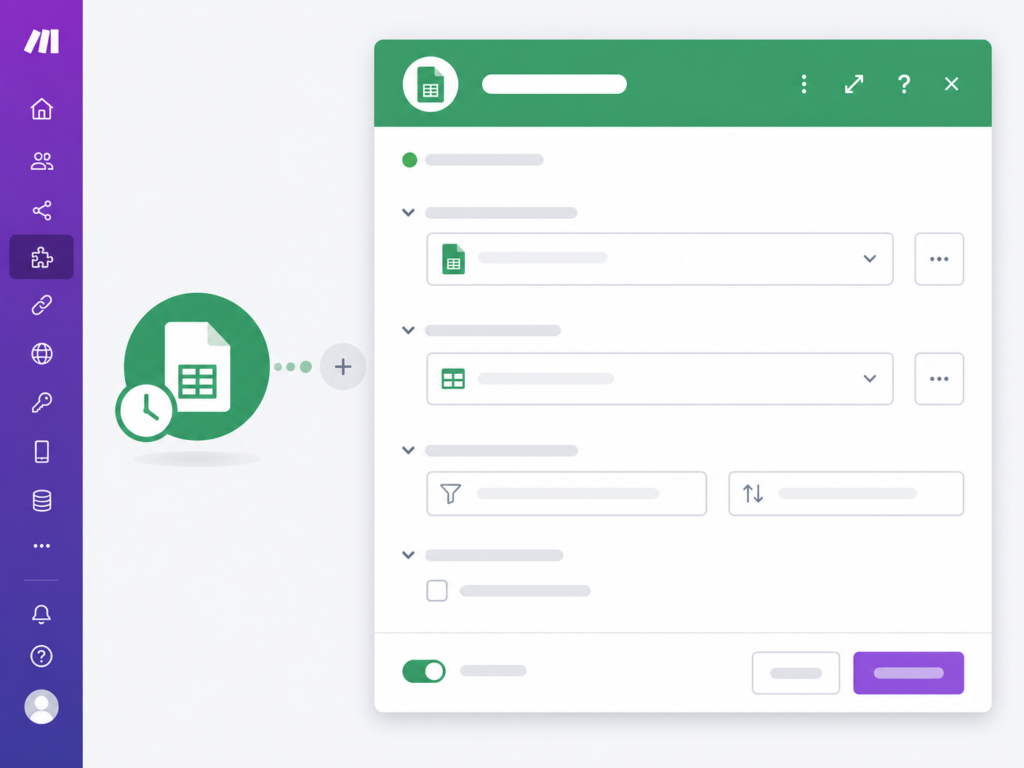
•Spreadsheet: From the dropdown, select the Google Sheet you prepared earlier (e.g., “SEO Content Ideas”).
•Sheet Name: Choose the specific sheet within your spreadsheet (e.g., “Sheet1”).
•Table contains headers: Crucially, ensure this is set to Yes if your first row contains descriptive column headers.
•First row contains headers: Confirm this setting is also Yes.
•Limit: Set this to 1 to process one new row at a time. This is highly recommended for initial testing and debugging to ensure everything works as expected.
Step 4: Integrate the OpenAI (ChatGPT) “Create a Completion” Module (Your AI Action)
This is where the magic of AI happens, transforming your topics into valuable insights.
1.Click the “Add another module” button (the prominent plus sign) located next to your Google Sheets module.
2.Search for “OpenAI (ChatGPT)” and select the “Create a Completion” module.
3.Connect your OpenAI Account: You will need to provide your OpenAI API Key. This key can be securely generated and found within your OpenAI dashboard under the “API keys” section. Keep this key confidential.
4.Configure the module for intelligent responses:
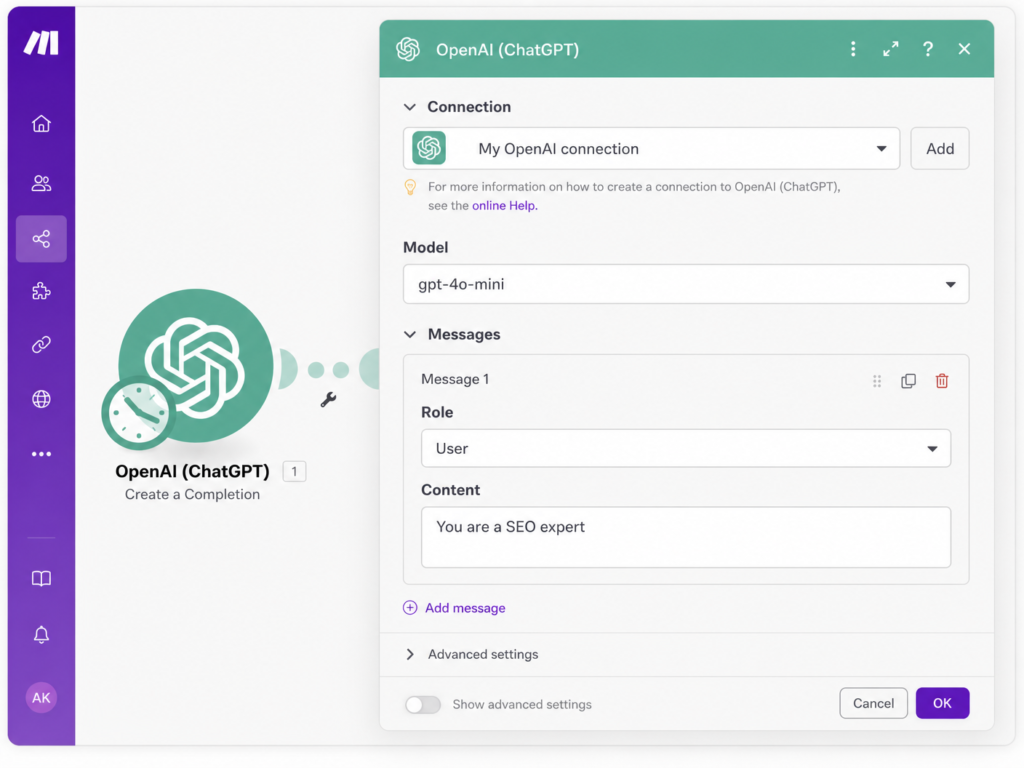
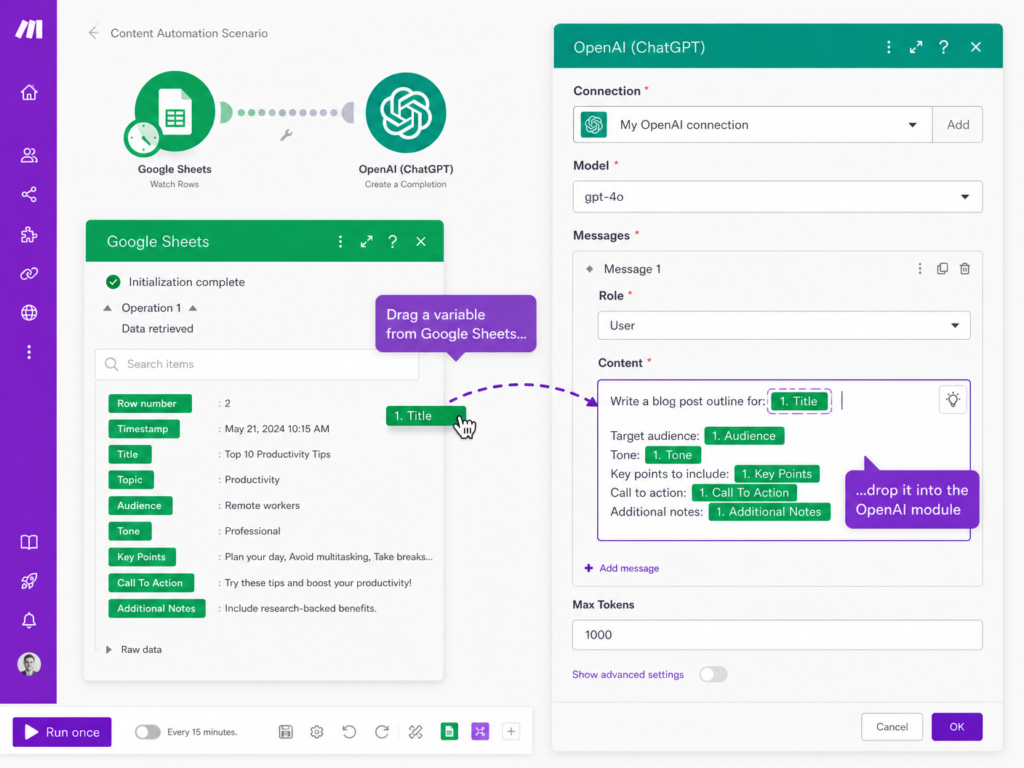
Caption: Visualizing how to map the ‘Topic’ variable from Google Sheets into the OpenAI module’s prompt field, ensuring dynamic content generation.
•Model: Select gpt-4o-mini (or any other preferred, available model that suits your needs).
•Messages: This is the heart of your AI interaction – where you’ll craft your prompt for ChatGPT. Click “Add item” to define the conversation.
•Role: Select User.
•Content: This is your instruction to ChatGPT. Here, you’ll dynamically reference the “Topic” column from your Google Sheet. For example, your prompt could be:You are a highly experienced SEO expert specializing in keyword research. Your task is to generate 5 highly effective, relevant, and low-competition SEO keywords that could be used to optimize an article about the {{1.Topic}}. Present these keywords as a comma-separated list.The {{1.Topic}} element is a dynamic variable that automatically pulls the content from the “Topic” column of the new row detected by the Google Sheets module. This is a critical step for personalization.
•Max Tokens: Set a reasonable limit for the AI’s response length, e.g., 1000 tokens.
•Temperature: Adjust this parameter to control the creativity of ChatGPT’s responses. A value of 1 (on a scale of 0 to 2) typically yields more creative and diverse outputs, while lower values produce more focused and deterministic results.
Step 5: Add the Google Sheets “Update a Row” Module (Your Output Action)
This final module ensures that ChatGPT’s valuable output is seamlessly written back into your original Google Sheet.
1.Click the “Add another module” button next to your OpenAI module.
2.Search for “Google Sheets” and select the “Update a Row” module.
3.Connect your Google Account: Use the exact same Google Account connection you established in Step 3.
4.Configure the module to update the correct row:
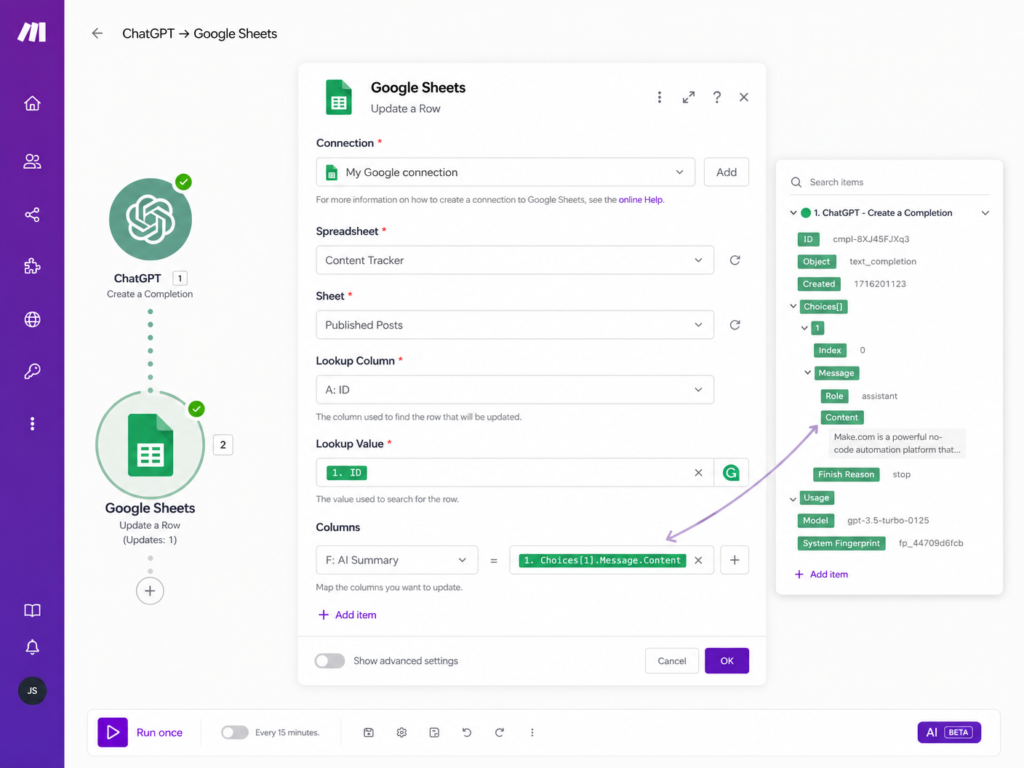
•Spreadsheet: Select your “SEO Content Ideas” spreadsheet again.
•Sheet Name: Select “Sheet1.”
•Row Number: This is a crucial step for accuracy. You need to tell Make.com precisely which row to update. Select 1.__ROW_NUMBER__ from the variables provided by the Google Sheets “Watch Rows” module. This ensures that ChatGPT’s output is written back to the exact same row that initially triggered the automation.
•Values: Map the output from ChatGPT directly to your “Generated Keywords” column.
•Click “Add item.”
•For the column, select “Generated Keywords.”
•For the value, select 2.choices[].message.content from the OpenAI module’s output variables. This action will dynamically insert ChatGPT’s generated response into the specified column of your Google Sheet.
Step 6: Test, Refine, and Activate Your Scenario
This is where you bring your automation to life and ensure it performs flawlessly.
1.Save your scenario: Always save your progress regularly.
2.Run Once: Click the “Run once” button located in the bottom left corner of the Make.com interface. This executes your scenario a single time.
3.Add a new row to your Google Sheet: Navigate to your “SEO Content Ideas” Google Sheet and add a new topic in the “Topic” column (e.g., “Benefits of Sustainable Fashion”).
4.Observe the magic: Watch as Make.com processes the new row, sends your topic to ChatGPT, and then updates the “Generated Keywords” column with the AI’s intelligent response. This real-time feedback loop is incredibly satisfying!
5.Schedule for continuous operation: Once you’re completely satisfied with the results and have confirmed the automation works as intended, you can set your scenario to run on a predefined schedule (e.g., every 15 minutes, hourly, or daily) or configure it to trigger instantly whenever new data is added to your Google Sheet.
Real-World Example: From Topic to Keywords in Seconds
Let’s illustrate the power of this automation with a concrete example:
Input Topic in Google Sheet (Column A: Topic)
Plain Text
Benefits of Cloud Computing
AI Generated Keywords (Output in Google Sheet, Column B: Generated Keywords)
Plain Text
cloud computing advantages, scalable cloud infrastructure, secure cloud hosting, cloud data management, remote work solutions
This before-and-after demonstrates how quickly and effectively ChatGPT can transform a simple topic into a list of SEO-rich keywords, ready for your content strategy.
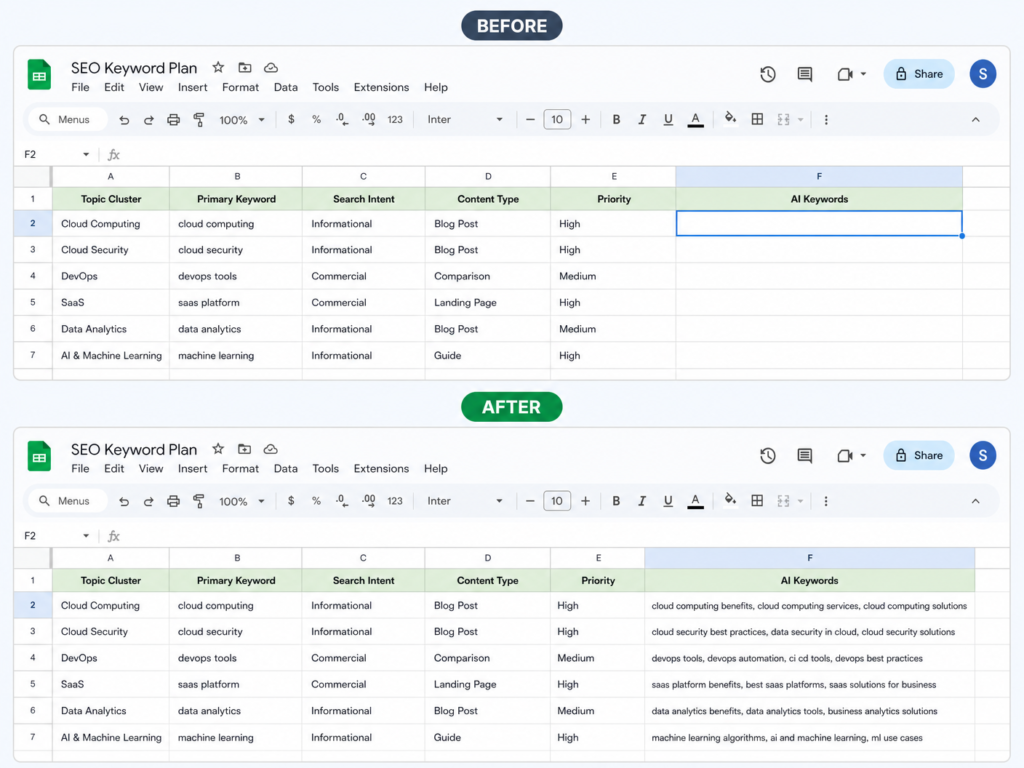
Caption: A visual comparison of a Google Sheet before and after the Make.com and ChatGPT automation, showcasing the automatically generated SEO keywords.
Optimizing Your Automation for Peak SEO Performance
To truly leverage this automation for maximum SEO impact and efficiency, consider these advanced strategies and best practices:
•Mastering Prompt Engineering: The quality of ChatGPT’s output is directly proportional to the quality of your prompt. Experiment with different prompt structures, tones, and specific instructions to consistently achieve the best results. Be explicit about the desired format (e.g., “comma-separated list,” “bullet points,” “short paragraph”), target audience, and any specific stylistic requirements.
•Chaining Multiple AI Steps for Comprehensive Content: Don’t stop at just keywords! You can extend your workflow by adding additional OpenAI modules. For instance, after generating keywords, you could add another module to generate a compelling meta description, then another for a short article outline, and even another for potential blog post titles – all based on the initial topic from your Google Sheet. This creates a powerful content generation pipeline.
•Implementing Conditional Logic with Routers and Filters: Make.com’s advanced tools, such as Routers and Filters, allow you to create dynamic workflows. You can set up different paths based on specific conditions in your Google Sheet. For example, if a topic is marked “urgent,” you could send it to a different ChatGPT prompt designed for quicker, shorter responses, or route it to a different team for immediate review.
•Robust Error Handling for Uninterrupted Operations: Automations can sometimes encounter unexpected issues. Implement robust error handling mechanisms within Make.com to notify you immediately if a scenario fails. This ensures continuous operation and allows for quick troubleshooting, minimizing downtime and data inconsistencies.
•The Indispensable Human Review: While automation is incredibly powerful, it’s a tool to augment, not replace, human intelligence. Always include a critical human review step for any content generated by AI, especially for critical marketing materials. This ensures accuracy, maintains your brand’s unique voice, and guarantees the highest quality output before publication.
Common Automation Mistakes and How to Avoid Them
Even seasoned automation enthusiasts can stumble. Being aware of common pitfalls can save you hours of troubleshooting. Here are some frequent mistakes and how to sidestep them:
•Forgetting Row IDs/Incorrect Mapping: A common error is failing to correctly map the __ROW_NUMBER__ or other unique identifiers back to your Google Sheet’s update module. This can lead to AI outputs being written to the wrong rows or not at all. Always double-check your variable mapping.
•Infinite Trigger Loops: Be cautious when setting up triggers and actions. An automation that updates the same row that triggers it can create an infinite loop, quickly consuming your operations and potentially leading to API rate limits. Use filters or specific trigger conditions to prevent this.
•OpenAI Token Limits: ChatGPT responses are limited by tokens. If your prompts are too long or you request very extensive outputs, you might hit token limits, resulting in truncated responses. Adjust your Max Tokens setting and refine your prompts for conciseness.
•Webhook Delays & Scheduling Conflicts: If your scenario relies on webhooks or specific schedules, ensure there are no delays or conflicts that could cause data to be processed out of order or missed entirely. Monitor your scenario history for consistent execution.
•Spreadsheet Formatting Issues: Inconsistent formatting, extra spaces, or unexpected characters in your Google Sheet can sometimes confuse Make.com or ChatGPT. Maintain clean, consistent data entry practices.
•Prompt Inconsistency: Using vague or inconsistent prompts for ChatGPT can lead to varied and unpredictable outputs. Strive for clarity, specificity, and consistency in your prompt engineering.
•API Quota Problems: Regularly monitor your OpenAI API usage to avoid hitting daily or monthly quotas. Plan your automations to be efficient with API calls, especially for high-volume tasks.
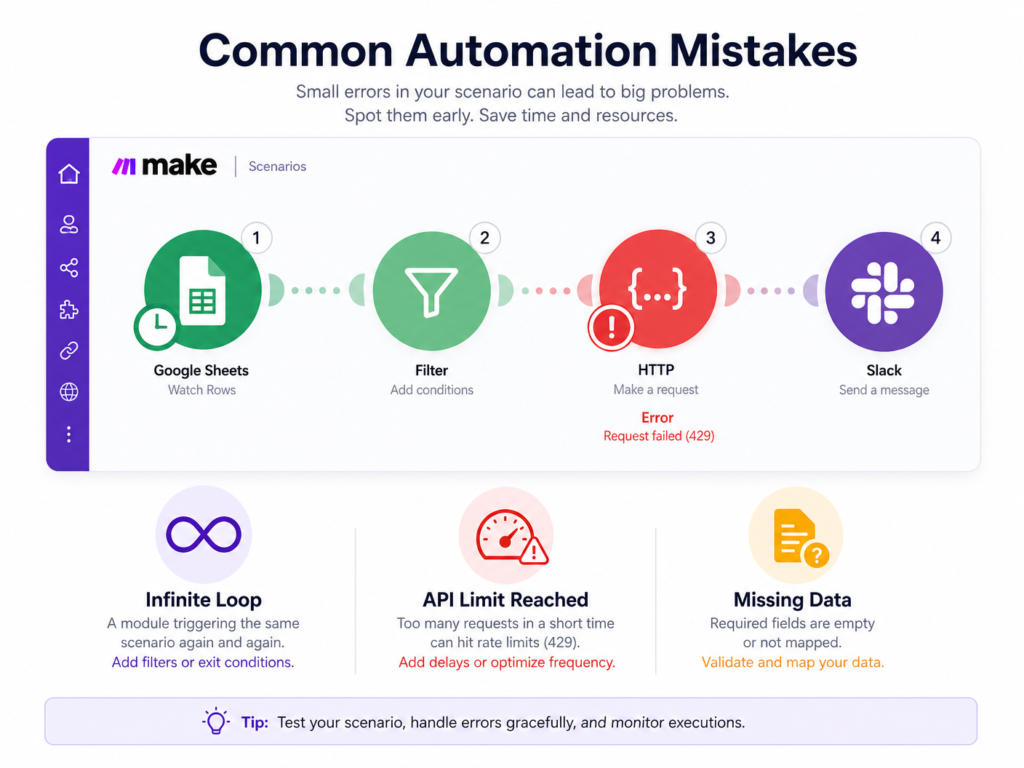
Caption: A visual guide to common pitfalls in Make.com automations, highlighting issues like infinite loops, API limits, and missing data, and offering tips for prevention.
Conclusion: Embrace the Future of Intelligent Automation
The seamless integration of Google Sheets, ChatGPT, and Make.com offers an unparalleled opportunity to automate, optimize, and elevate your workflow. By transforming manual data entry and content generation into a streamlined, AI-powered process, you can unlock significant time savings, boost operational efficiency, and dramatically enhance the quality and consistency of your output. This dynamic trio empowers you to move beyond repetitive tasks and focus on strategic growth and creative innovation.
Embrace the future of intelligent automation. Start building your own scenarios today and experience the transformative power that comes from having a tireless, intelligent assistant working alongside you. The path to a more efficient, productive, and strategically focused workflow begins here.
Realated Articles:
AI Automation for Solopreneurs: 7 Powerful Tools to 10x Your Productivity
AI CRM for Freelancers: 7 Proven Secrets to Ultimate Growth
References
[3] Make.com. (n.d.). OpenAI (ChatGPT, Sora, Whisper) and Google Sheets Integration. Retrieved from